
Upon successful login to the Supplier Portal, the Supplier will be presented with a Landing page of the MeRLIN Supplier Portal.
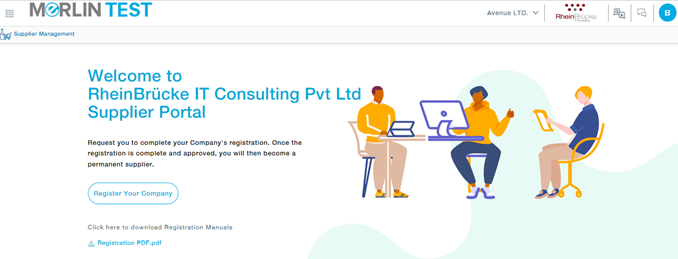
Supplier Portal Components:
MeRLIN Supplier Portal has three main navigational components. They are:
- The Menu Bar (hamburger button) is on the left side top of the screen. The Menu Bar contains a list of icons that represent various functions/features in MeRLIN.
- The User Information icon on the top right corner of the window is used to view and edit Profile information, log out, etc. Other icons include Supplier Name, clicking on which you will see the status of your account and any actions like view or edit supplier details. Followed by the Buyer Organization Name, Commonly called out Questions and Answers, and collaborator, the details of which will be discussed as we proceed with the manual.
- The remaining area of the screen is User’s work area where information related to business processes is presented and actions by the User are carried out.
- When you log in for the first time into MeRLIN’s Supplier portal as a new Supplier, the Landing page contains a Welcome screen with a button to the Supplier Registration Information screen.
- Click on the “Register your company” button to navigate to the Registration form. If the buyer has attached any documents, you can download the Registration Manual.
NOTE: If the Supplier registration form which was already visible in Supplier Portal has disappeared, or if you are no longer able to access the Supplier portal, it means the Buyer has recalled, and hence no action is required from Supplier.
Fill Supplier Information
Clicking on the Link in the home page will take the user to the Supplier registration form.
Company Tab
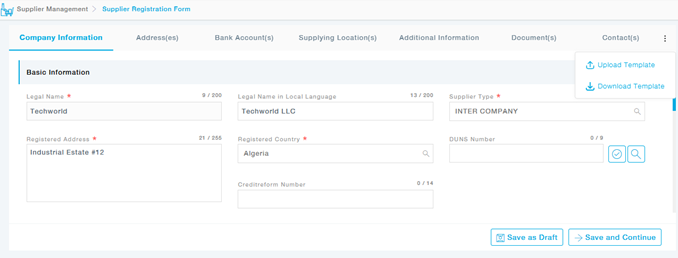
- The Supplier should fill in the details.
- You can also Download the supplier registration form in the form of an Excel template, fill in the details and upload the Excel to fill the registration form using the Download and Upload Template options.
- Fields marked with an asterisk (*) are mandatory.
- Choose the Company NAICS and SIC codes from the available list. You can also verify the DUNS number at this stage.
- Upload the company logo, Choose the category of items you would like to supply to the buyer under categories. One or more categories can be chosen.
- Categories selected by the Buyer at the time of sending the invite are selected by default when the Supplier opens the Registration form. The Supplier can however make changes, if required.
- Provide the primary contact information.
- Social media handles can be added.
- Once you have completed the Company tab, you may proceed to the next section by clicking on the next tab.
Also, at this stage, you can save the Registration form as a Draft by clicking on the Save As Draft button. If the form is incomplete and all details are not available for filling up, all entered details can be saved as Draft.
- Information saved as a draft will be retained across devices and login sessions. Hence, even if the user logs out from a device and logs in using the same credentials across a different device, information can still be seen and edited.
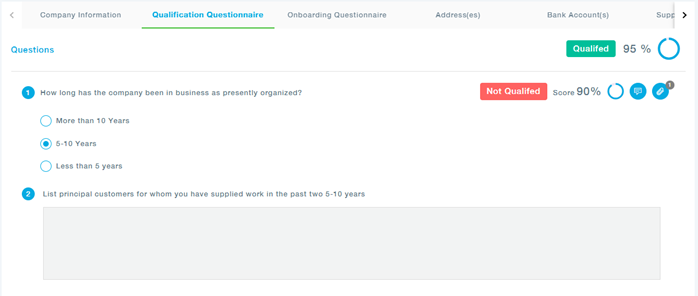
Qualification Questionnaire
- The response to the qualification questionnaire from the Interested Form will be displayed under this tab, including all the attachments and comments provided. This tab will be enabled only if the supplier is onboarded from the supplier interested form.
Onboarding Questionnaire
Provide the response to the Onboarding Questionnaire, and add comments and attachments wherever required.
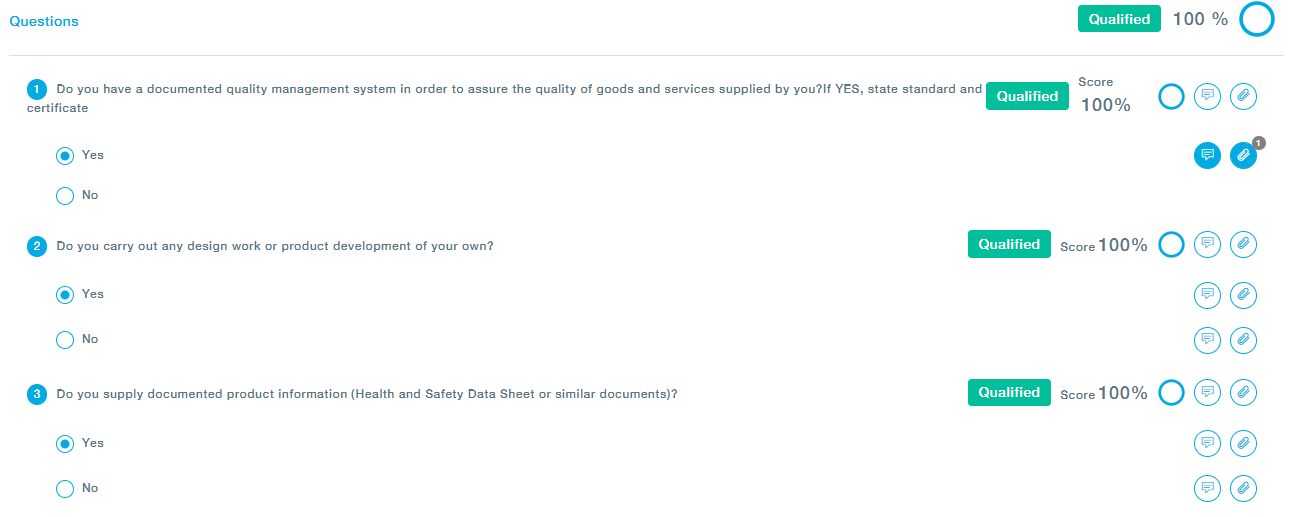
Compliance Questionnaire
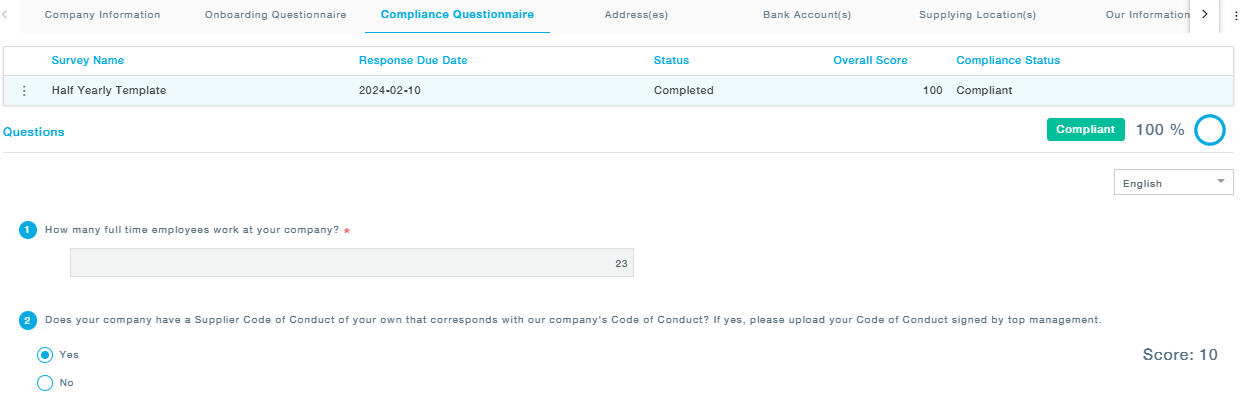
If you have previously completed a compliance questionnaire, your responses will be available under the ‘Compliance Questionnaire’ tab.
Address(es)
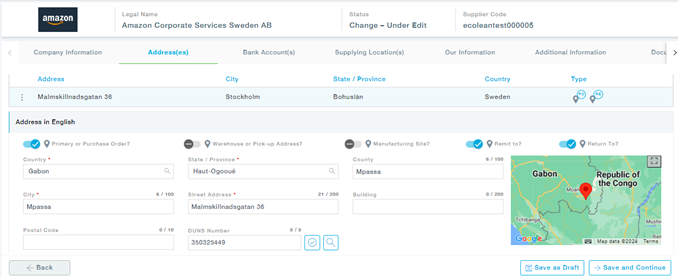
You can add multiple addresses under the Addresses tab. Choose Yes in the Primary or Purchase Order field, if the address you are entering is the Primary address or address for Purchase Orders. In case you have multiple addresses, only one primary a is permissible. The address can be Remit to, Manufacturing Site address or Warehouse or Pickup Address. Once the address is provided, click on the Save and Continue to save the address and move to the next tab or Save and Add More button to add more addresses.
Bank Account(s)
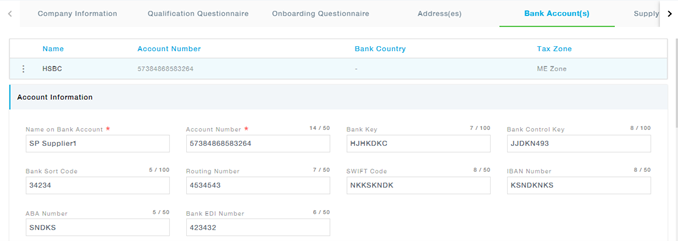
Enter the bank account details and the bank address. Click on Save and Add More to add more than one account to List. You can have multiple bank accounts.
Supplying Locations
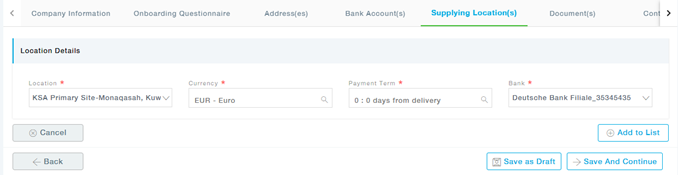
Fill in the details. Save the Suppling location by clicking on the Save and Continue to move to the next page, or Save and Add More to add more locations.
Additional Information
Fill in the requested Additional Information, these information are specific to the Categories selected for the Supplier.
Documents
The supplier will need to attach relevant documents to support the information provided. The documents can be uploaded using this tab.
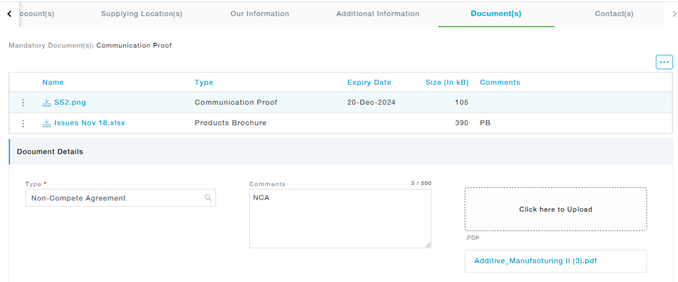
Choose the document type, expiry date, and comments and Upload the file. After choosing the file, click on the Add to List.
When a document is nearing its expiry or has already expired, the entire Supplier Registration form is automatically made editable. This enables suppliers to update the necessary information, including any other relevant changes required within the form. Once the first reminder regarding document expiry is sent to the supplier, the registration form becomes editable to facilitate prompt updates
Also, for some document types, templates will be available.
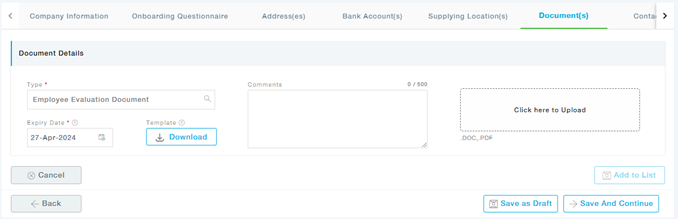
In such cases, download the template, fill in the required details, and upload the file.
For some document types, the Meta Data Extraction would have been enabled. For such a document, upload the document as already specified. Once uploaded, you will see the document analysis of the document as configured by your buyer.
After a quick analysis, the extracted metadata is presented directly in the UI, in the form of a quick summary of the document you just uploaded. Review the Data and proceed.
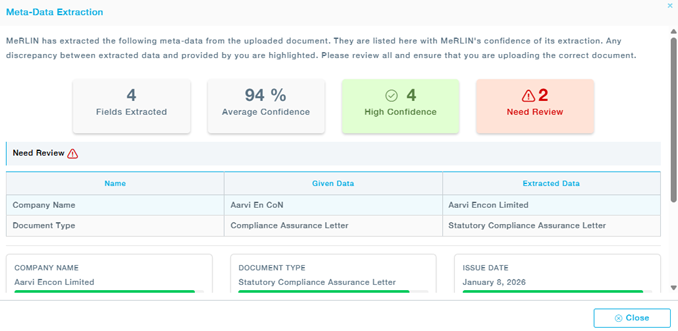
Note: Even when discrepancies are identified during AI-based metadata validation, suppliers are allowed to proceed with the upload. MeRLIN provides assisted insights only and does not restrict document submission. Click Proceed.
Contacts
Provide the contact information of the logged-in User and add it to the list, you can proceed to add one or more contacts.
The functions refer to the list of activities and modules that can be accessed by the Supplier contact. Provide “Yes” under the Access field, if Yes is selected, the contact will be able to access the Supplier Portal.
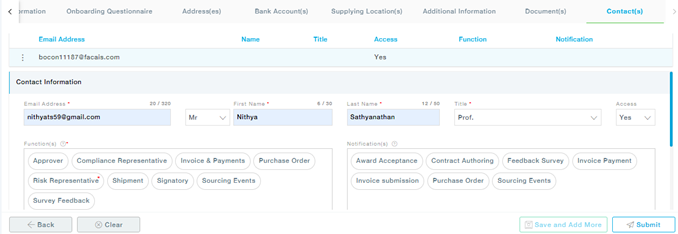
Functions
- Approver: Contact can review and approve requests.
- Compliance representative: Compliance Representative can participate in the Compliance Surveys
- Risk Representative: Risk representative can work with the Buyer and work on the Supplier risk related activities.
- Purchasing: The User can perform the procurement-related activities
- Sourcing Events: The supplier user will have access to the Sourcing Activites
- Signatory: The supplier user will have the authority to digitally sign and collaborate with the Buyer and work on the Contract documents.
- Survey Feedback: The Supplier user can be a part of the Supplier Feedback Surveys and can submit the responses.
- Shipment: Shipment related activites can be carried out by the contact.
- Invoice and Payments: The Contact will have access to the Invoice and Payments section.
Once the Contact information is filled you can submit the form for Buyer approval. Review and Accept or Reject the Policy statements.