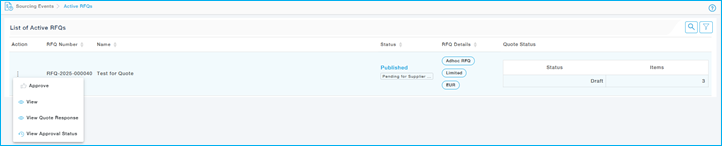
Menu Path: Sourcing Events > Active RFQs > Actions > Provide Quote

Q & A
Provide the answers for questions provided in the Q & A tab

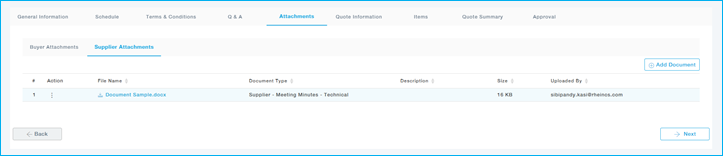
Attachments
The supplier can add the attachments, or any supporting documents related to the RFQ
Quote Information
Add the relevant quote information. The details of each field is given in the RFQ structure section above.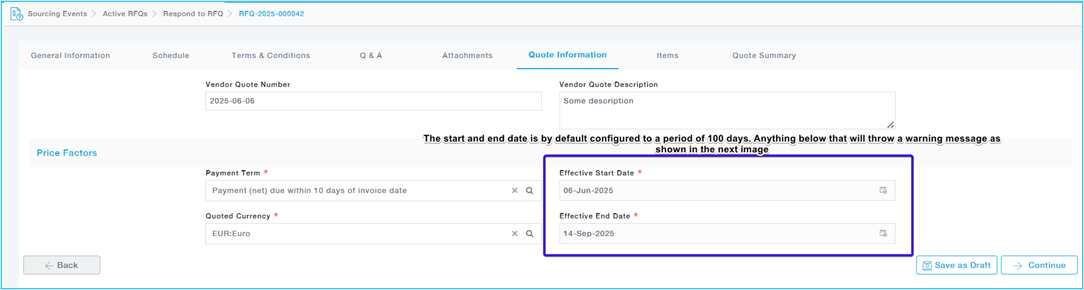
Items
You will be presented with either an item grid or an item form, where items are displayed one below the other, allowing you to submit a separate quote for each item.
Grid Structure:
Items are listed in rows, with additional item details available by scrolling horizontally. You can enter prices and other required information in the corresponding fields. Rows highlighted in red indicate that mandatory fields must be completed for those items.
Use the template toggle options at the top of the screen to switch between different templates, view the associated items, and provide the required responses for each template.
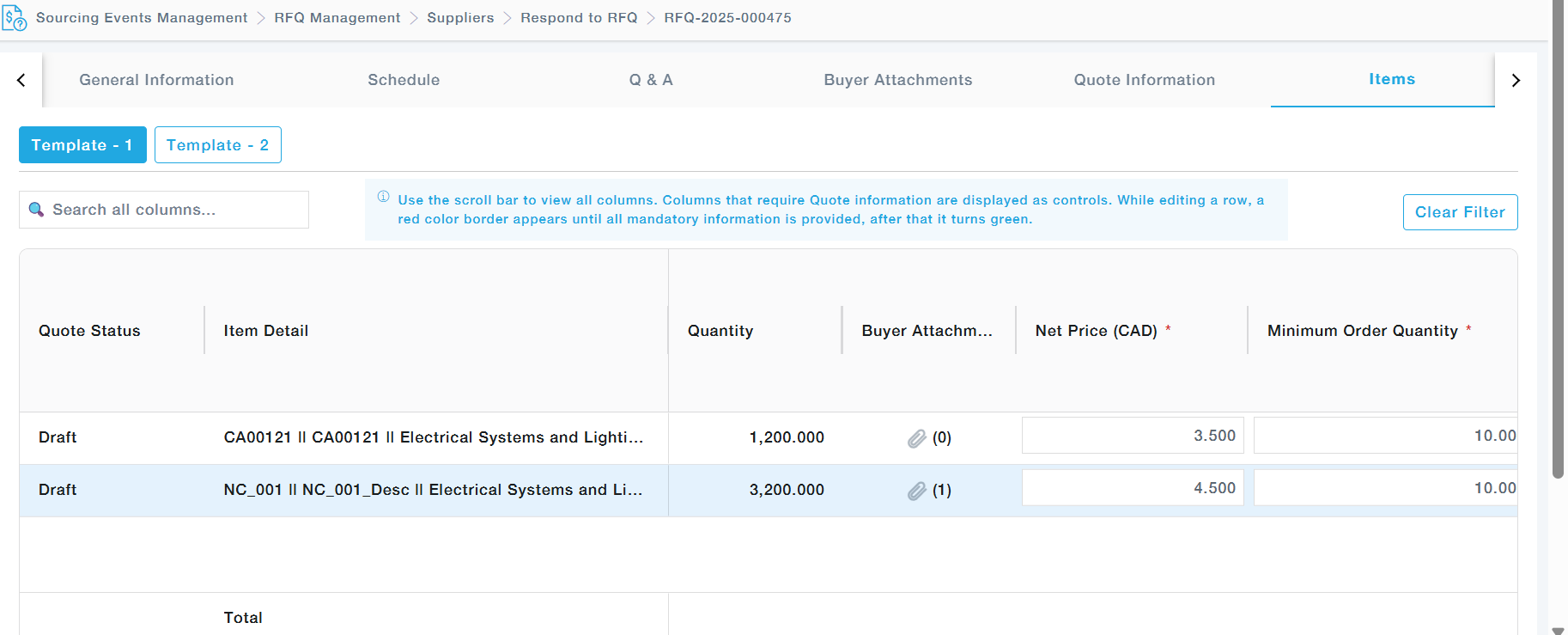
Item List:
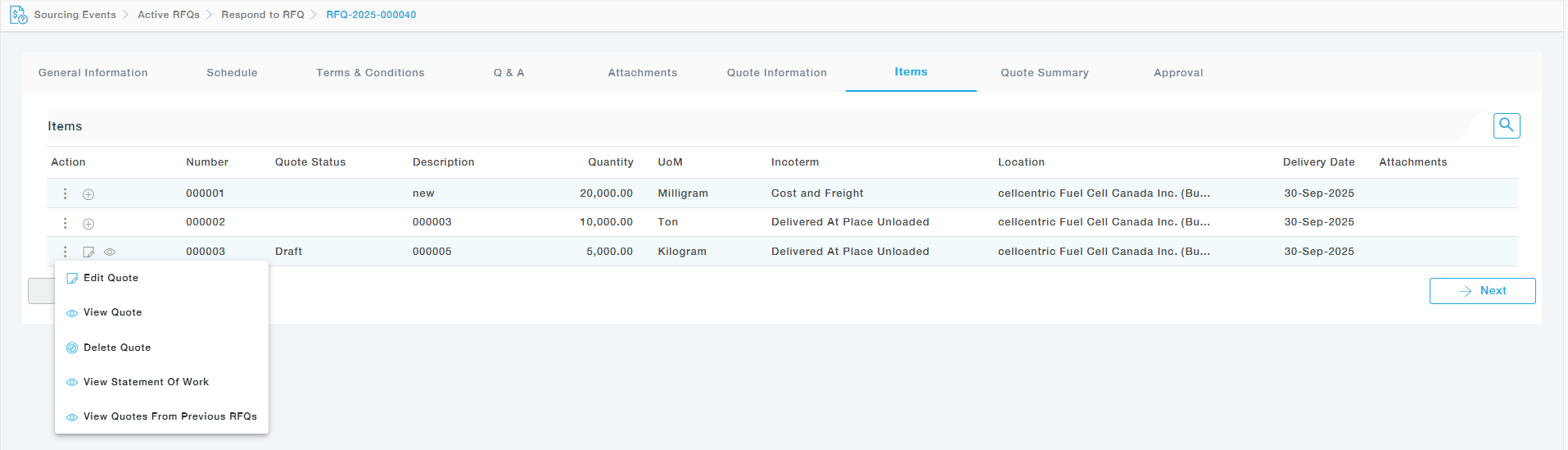
If the items are displayed with an Action option, you must provide your response by clicking the Action link for the respective item, as described below.
The supplier can choose to add quote using the + icon or using the option in the Actions menu
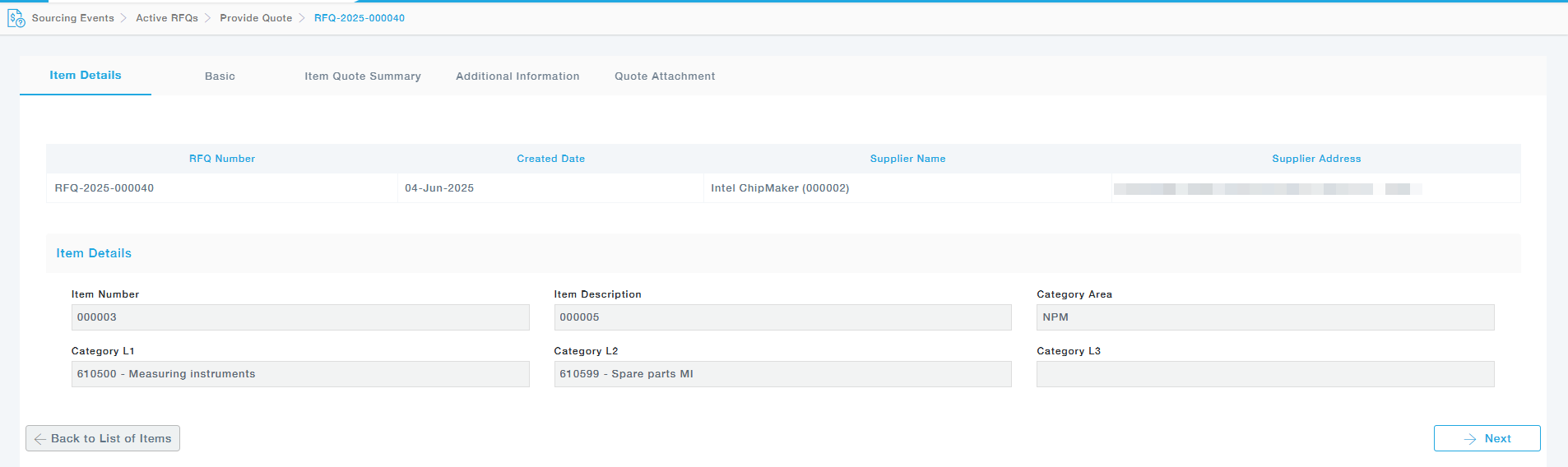
Items Details (Category / Non-Category Items)
The item details page is a read only page, and it provides the basic details of the item for which the quote needs to be provided. Click Next.
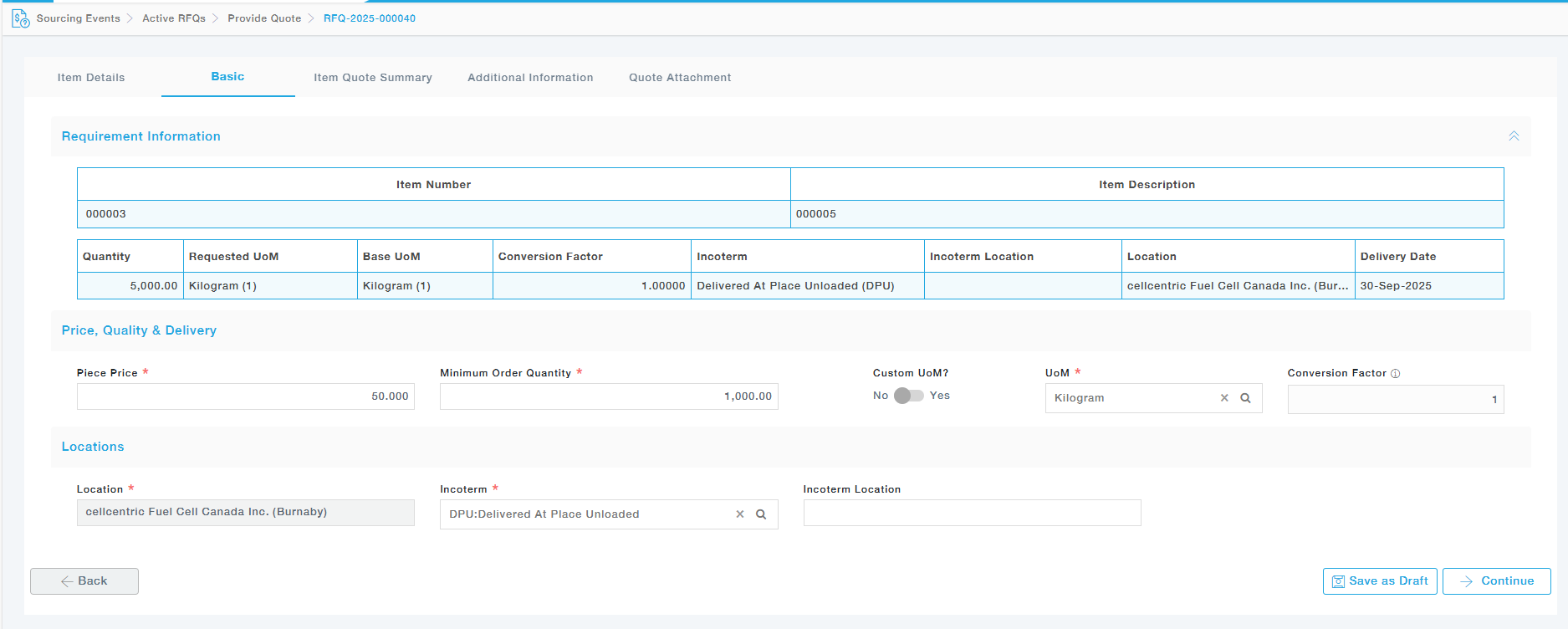
Basics: This tab allows the suppliers to provide-
- Piece Price
- Minimum Order Quantity
- UoM (Custom / Standard)
- Convertion Factor
Note: The UoM Conversion factor is automatically populated based on the supplier selection. Supplier can also provide a custom UoM and provide the Conversion factor as well.
Click on “Continue” button to proceed
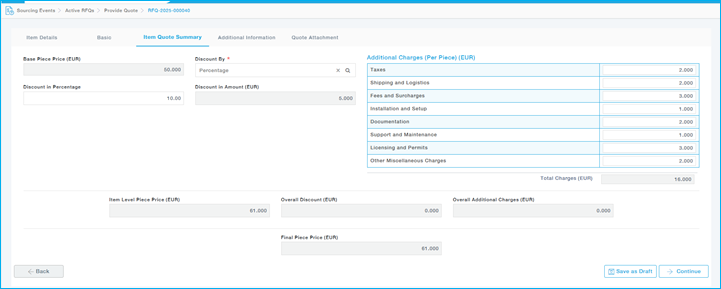
Item Quote Summary –
In this section the supplier can add discounts and additional charges, and the overall price will be auto-populated as shown.
The Discount can be by percentage or by Amount.
Additional Information – Add additional details

Quote Attachment: Add the attachments related to quote.

Click Save and Proceed.
Note: Once saved, the page automatically directs to the line items page for adding quotes for other items listed.
Item Details (Service Items)
The item details page is a read only page, and it provides the basic details of the item for which the quote needs to be provided.
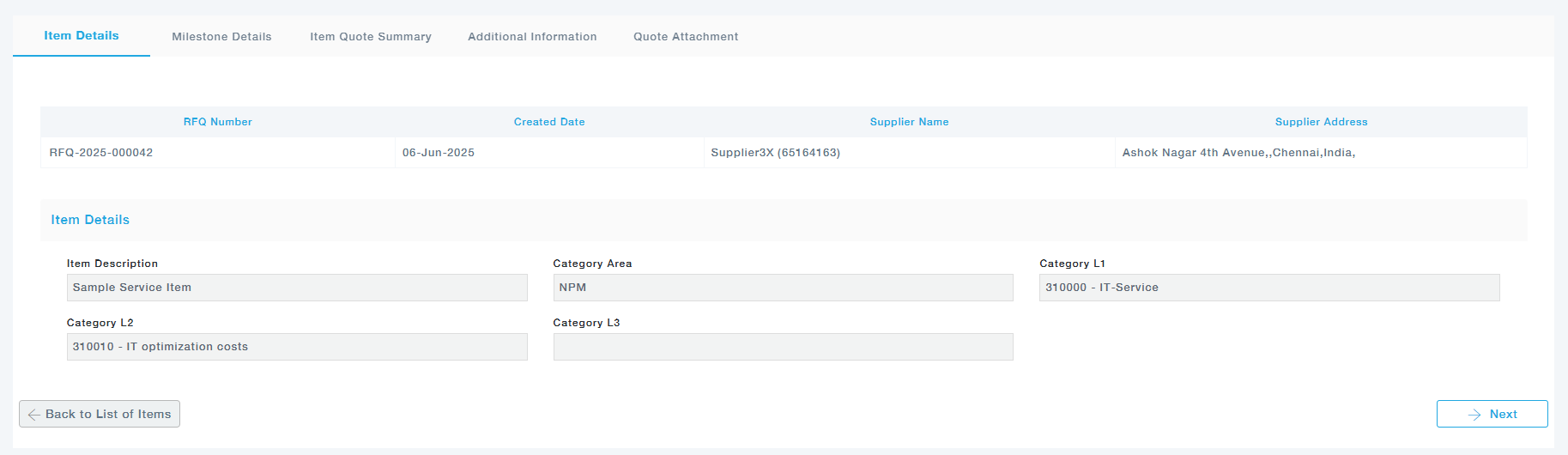
Click Next.
Milestone Details
Milestones in service items break down delivery into trackable phases, enabling progress checks, phased payments, and clear accountability between buyers and suppliers.
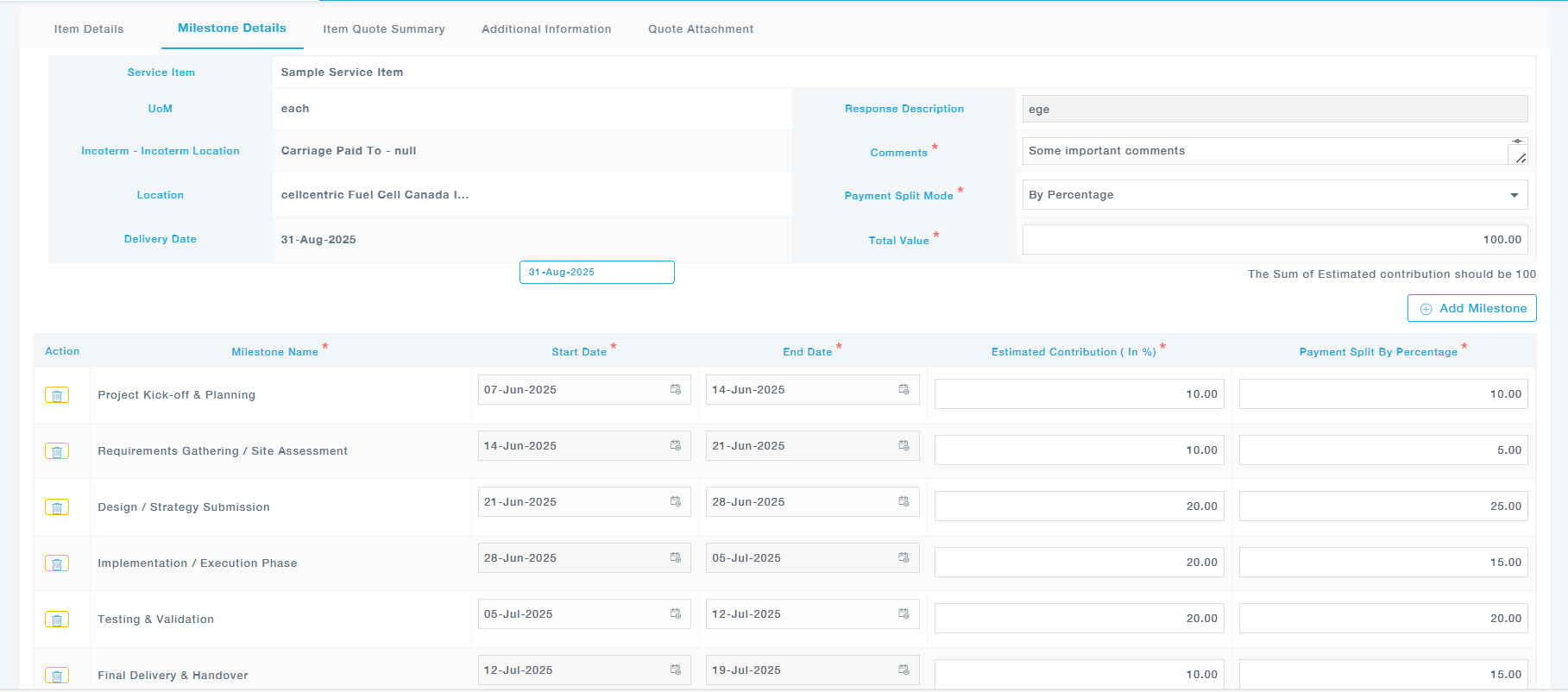
Please find the details of the fields in the milestone details. After filling all the fields click save milestone.
| Field | Description |
| Service Item | Describes the service for which the quote is being provided (e.g., “Sample Service Item”). |
| UoM (Unit of Measure) | The unit in which the service is measured |
| Incoterm – Incoterm Location | The international commercial term selected along with its location. For example, “Carriage Paid To – [Location]”. |
| Location | The destination where the service is to be delivered or performed (e.g., a specific facility). |
| Delivery Date | The date by which the complete service is expected to be delivered. |
| Response Description | A brief description or identifier for the supplier’s response. |
| Comments | Additional remarks or clarifications from the supplier related to the service or pricing. This field is mandatory. |
| Payment Split Mode | Specifies how the payment will be distributed across milestones. Options typically include “By Percentage” or “By Value”. |
| Total Value | The total quoted value for the entire service item. The milestone percentages or values should sum up to this total. |
Item Quote Summary
In this section the supplier can add discounts and additional charges, and the overall price will be auto-populated as shown. The Discount can be by percentage or by Amount.
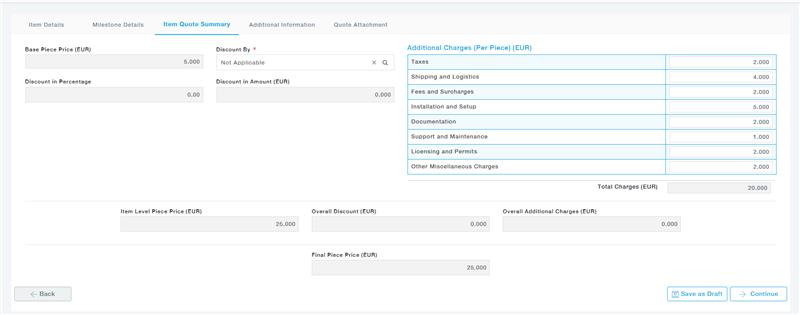
Additional Information
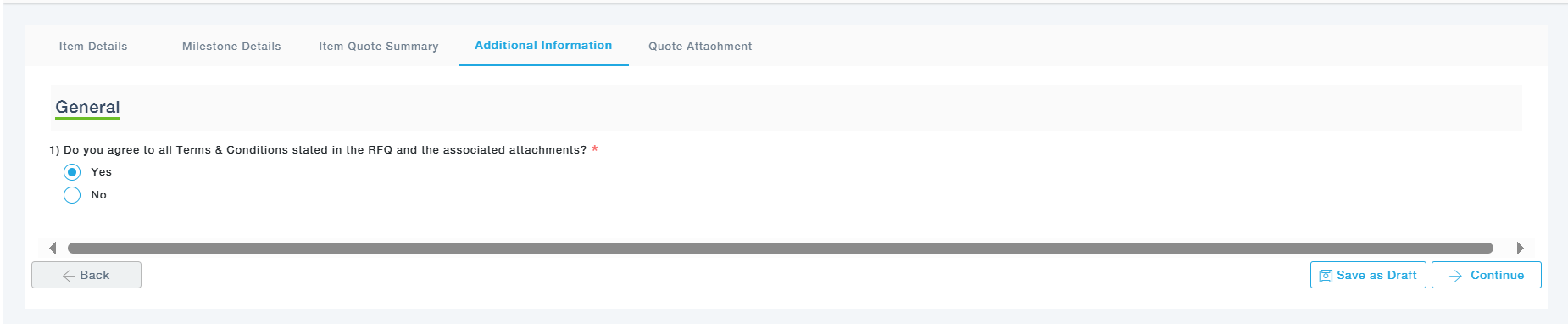
Quote Attachment
Add the attachments related to quote.

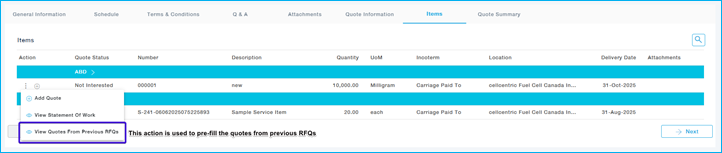
View Quotes from previous RFQs
- View quote from Previous RFQs displays the list of RFQs related to the items and suppliers previously submitted.
- Click on the “View Quotes From Previous RFQs” to prefill the quotes.
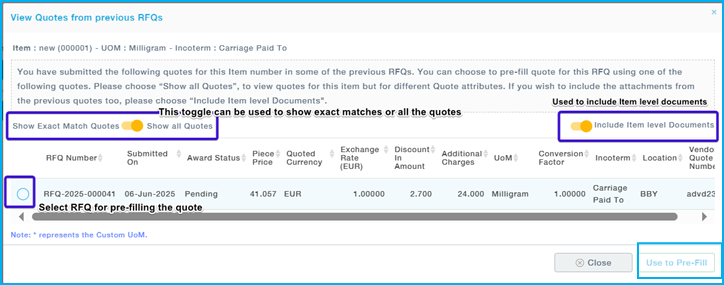
- Select the RFQ from which the quote needs to be filled. And select Use Pre-fill.
- The quote will then be moved to the draft status from there the supplier can start editing the quote.
- All the fields will be auto populated from the previous RFQ. The supplier can make changes if required.
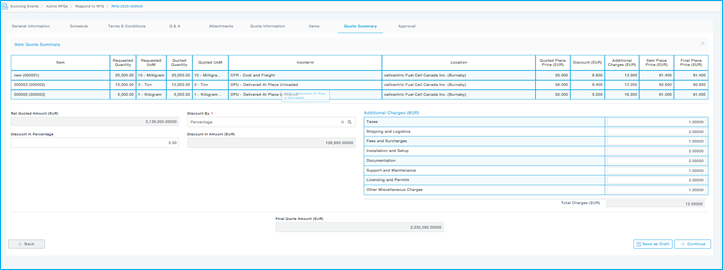
Quote Summary
- This tab provides the overall summary of quotes provided for all the items.
- Here the supplier can also add discounts and additional charges.
Approval Tab – Once the quote summary is completed, it is sent for approval. (The following images shows the Approval Process)