
Responding to SoW through email
Click on “Respond to SoW” button available in the email.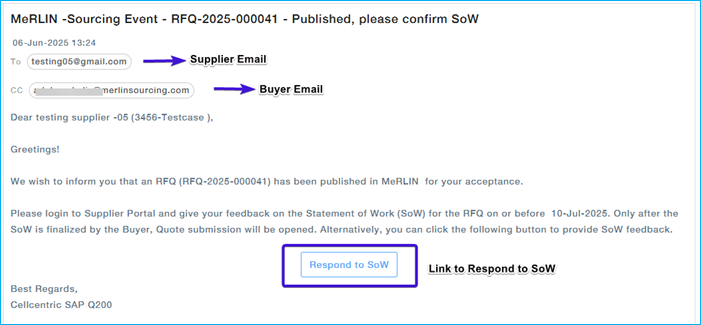
You will be redirected to a new browser tab displaying the supplier verification page. Review your supplier information and, if the email id is correct, click “Correct. Send me OTP” to proceed.

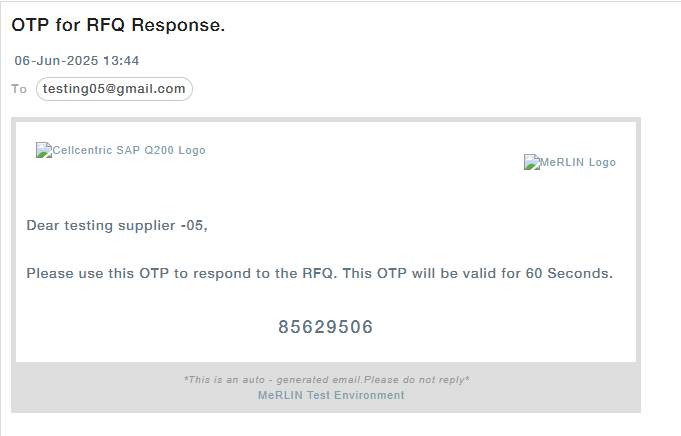
Supplier will receive an email with OTP.
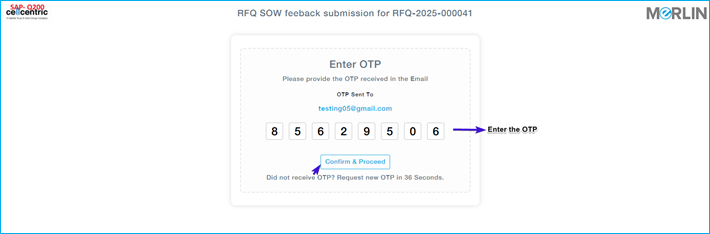
Enter the OTP received through the email and click Confirm and Proceed.
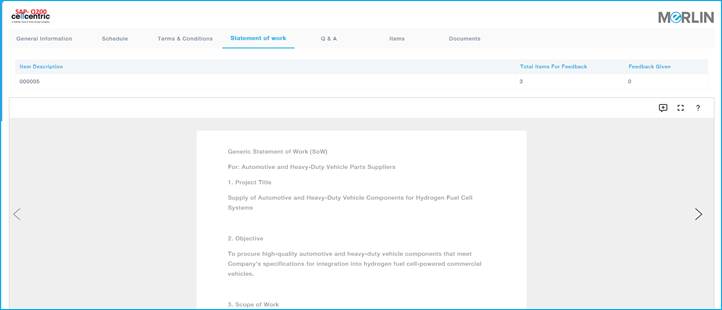
The page will be redirected to the SoW tab to provide feedback.
Responding to SoW through MeRLIN’s supplier Portal
Login to the Supplier Portal.
Menu path: Sourcing Events –> Active RFQs –> Action –> Give Feedback

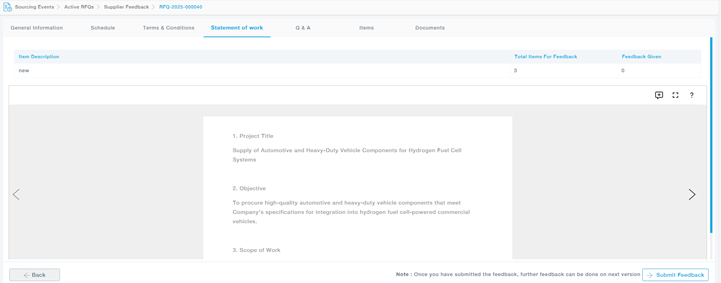
The supplier will be able to view the entire SOW for the provided Item and give the feedback.
| Field | Description |
| Item Description | Lists the item or part for which feedback or Statement of Work (SOW) is being provided. |
| Total Items for Feedback / Feedback Given | Summarizes the total number of items needing feedback and how many entries have been submitted. |
| Statement of Work (SOW) Content | Displays the SOW content for the selected item, including project scope, requirements, payment terms, and stakeholder roles. |
| Add Comments, Full Screen Mode, Help Options | – Add Comment: Add additional feedback or information. – Help (?): Guidance on adding, editing, or deleting comments. – Full Screen Mode: Expands content for better readability and zoom control. |
| Navigation Controls | Enables navigation between pages or sections of the SOW, such as next/previous item or section. |