
Here is a representation of Supplier portal dashboard.

The Dashboard Layout component is provided with dragging functionality to drag and reorder the panels within the layout. Click on the Settings icon on the right side top corner to perform the following actions in the dashboard.
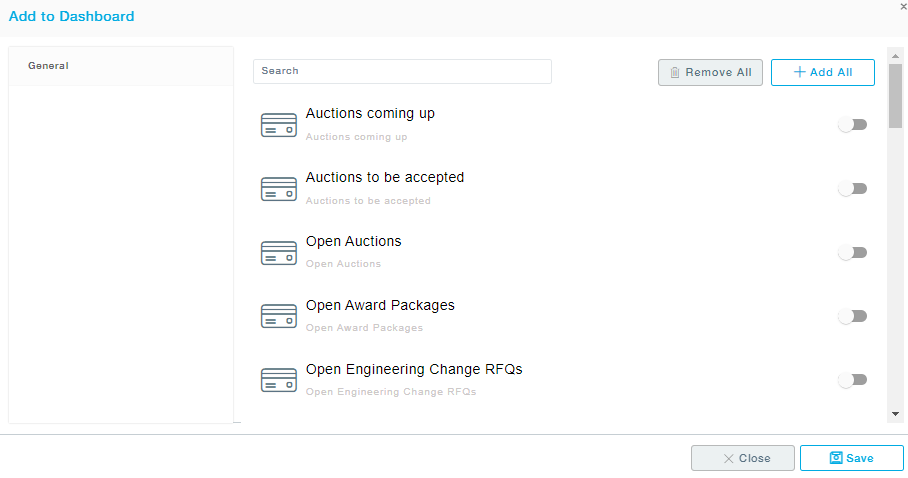
Customize Widgets: Choose the charts/cards and click on the Save button to move the selected items to the dashboard. The icons represent the type of dashboard item, whether a card or a chart, if it’s a chart what kind of chart, for instance, a bar chart, line chart, pie chart, etc.
Remove All to deselect all the charts/cards from the dashboard. Add All button will add all the charts/cards under the selected module to the dashboard.
Period: Choose Trailing 12 Months to view all the transactions during the last 12 months. Choose the Calendar Year to view the transaction from 1St January till the current date.
Remove All: Removes all the charts/cards from the dashboard.
Drag and drop the cards across the dashboard region as you desire and to move charts click on the title bar and drag to the desired location.