
Once the document has been finalized by the buyer, he could ask for a signature on the document. In such cases, MeRLIN will let you provide a signature on the document provided to you.
Documents can signed in two ways.
- Through MeRLIN Application
- Through Email
Sign through Application
Menu path: Authoring Contracts >> Active Requests.
- Under Actions, choose the Sign Document option.
- Review the document and click on NEXT.
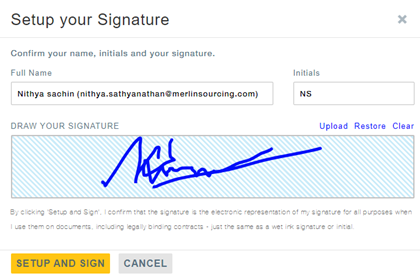
- Now provide the initials and sign. You can also upload the signature if required.
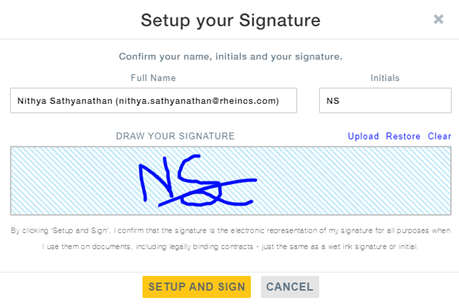
- Click on Setup & Sign.
- Now click on the “X” mark and to bring the signature.
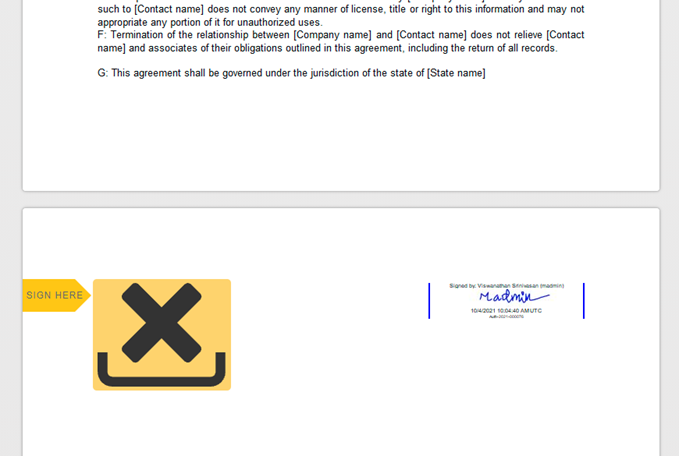
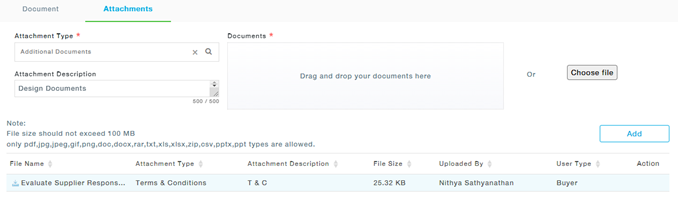
- You can also add attachments or view all the related attachments under the Attachments tab.
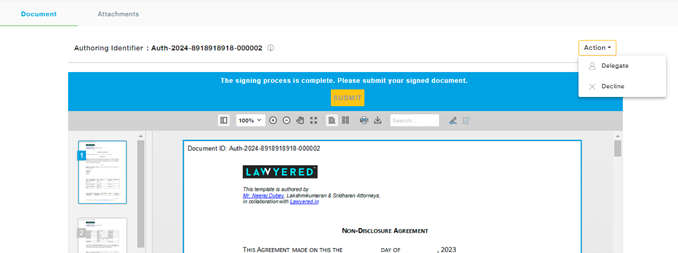
- Now click on the Submit button to submit the signed document to the next signatory in the Documents tab.
- Note: Throughout the signature process, before you finally submit the signed document you are provided with the provision to either decline or assign the document to someone else.
Sign through Email
- Open the email you have received from MeRLIN and click on Sign Document.
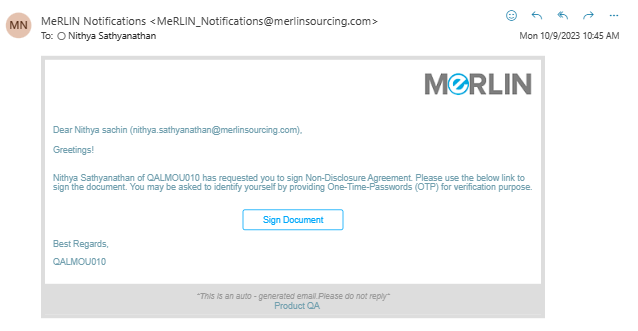
- Review the details and click on Send me OTP.
- Provide the OTP you have received through email, and Confirm and Proceed.
- If Mobile OTP configuration is enabled you will be asked to enter the OTP received to further proceed and sign the document.
- Review the Authored Document and Click on Next.
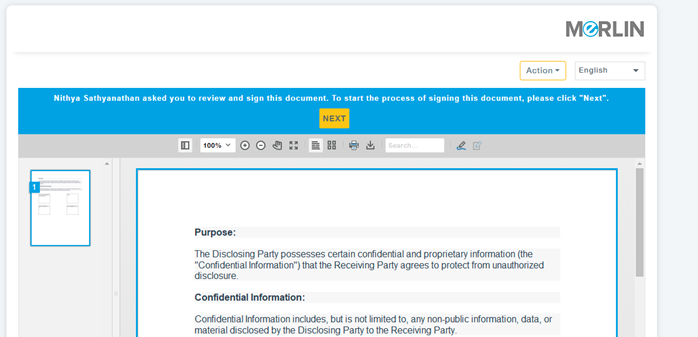
- Set up and Sign the document, you can also upload your signature if required.
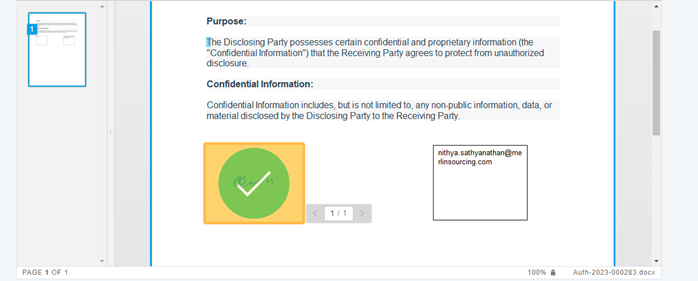
- Now click on the X mark.
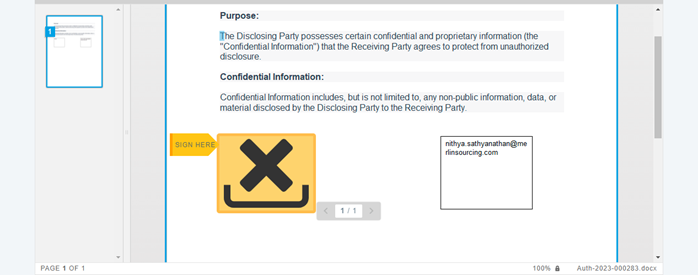
- The Signature is now uploaded as shown:
- Now click on the Submit button to complete the process.
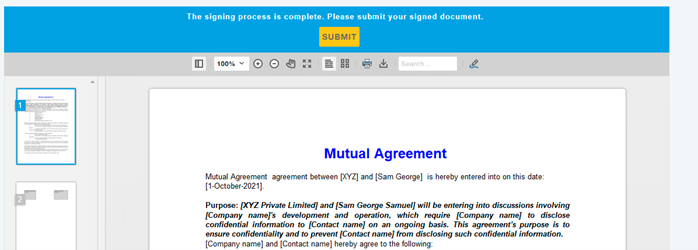
- The document now appears signed.
- You will receive the final signed copy of the document once all signatories complete their signature.